
Step 1: Go to the Roku Channel Store. Search for “IBO Player Pro.” Select “Add Channel” to install it.
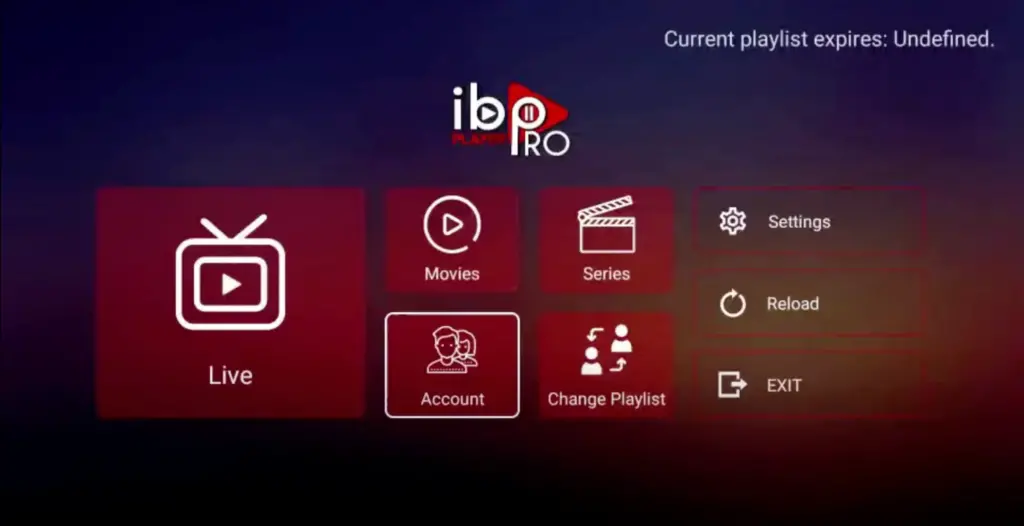
Step 2: Open the App and Click on “Account” to see an activation screen displaying a unique activation code (MAC Address and Device Key).
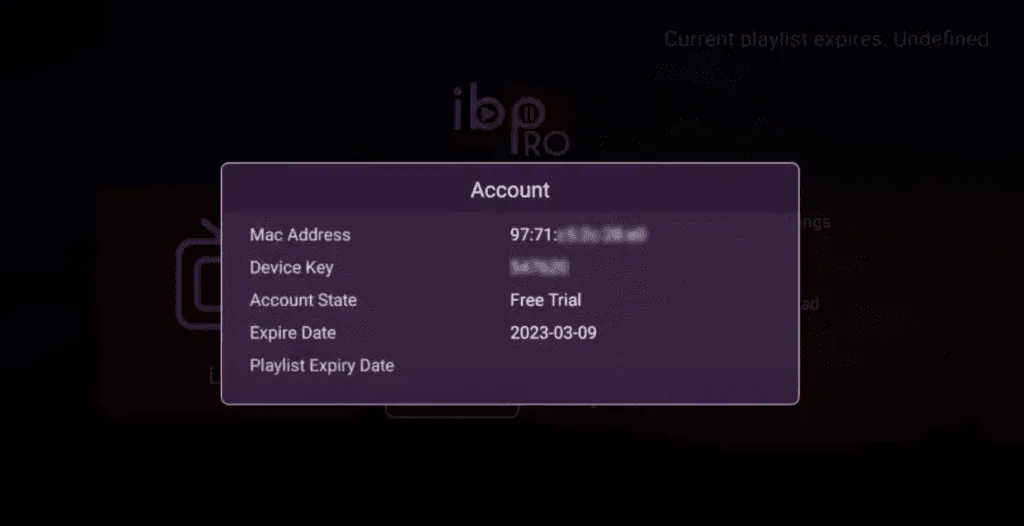
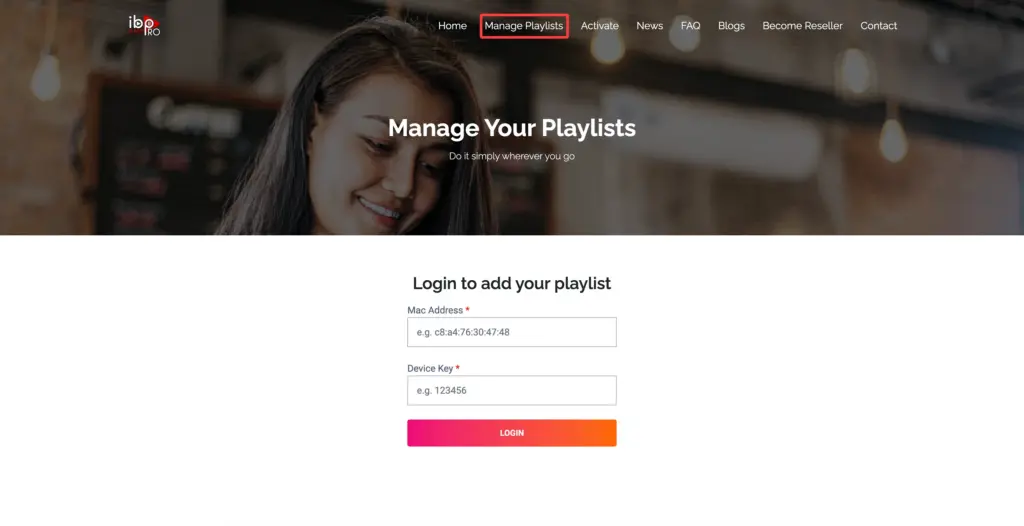
Step 3: Visit ibo Player Pro website https://iboproapp.com and Click “Manage Playlists” in Menu section. Then Enter the MAC Address and Device Key displayed on your device screen and Click “Login”.
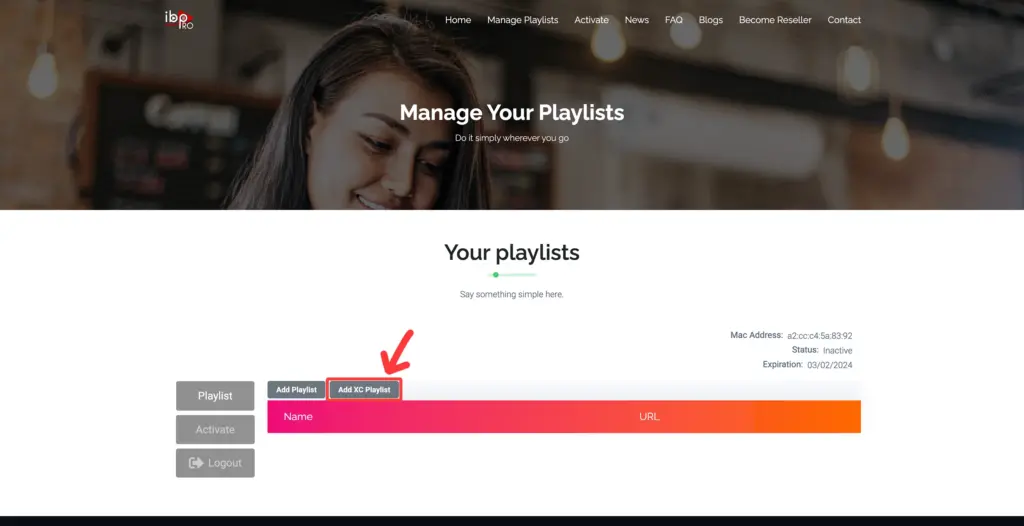
Step 4: Click “Add XC Playlist” (recommended way).
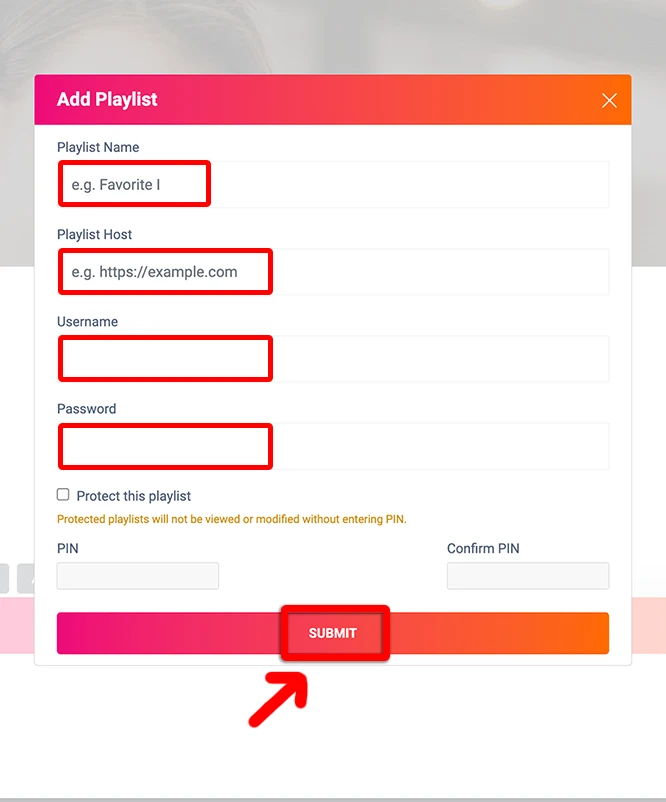
Step 5: Enter “Kemo IPTV” as the Playlist Name in the first box. Then in the second, third, and fourth boxes, input the Xtream Codes login credentials (Server address (Playlist Host), Username and Password) provided by us after subscribing. Finally, click “Submit” to proceed. Get Your Kemo IPTV Subscription.
Step 6: After activation, return to your device and restart the ibo Pro Player app for the changes to take effect. Then, select “Continue”, followed by “Change Playlists”, and connect to your Kemo IPTV playlist. Have a great time!
NOTE: The app has a 7-day trial period; when it expires, go to https://iboproapp.com/manage-playlists, Log in with the MAC Address and Device Key from your app, then pay the one-time fee.
Congratulations! You’ve now completed the setup of the ibo Player Pro app for seamless streaming.
There is another way to enjoy Kemo IPTV. You’ll need to have either an Android or iOS device and install the Web Video Cast app on it. This application is available in the Google Play Store and the Apple App Store.
These instructions will get you up and running quickly:
Install the Web Video Cast app from the Play Store or Apple Store and then open it.
Tap on the three lines in the top left-hand corner of the screen to bring down the sidebar.
Select ‘IPTV’ from the list.
Next, tap on the + icon to open up a blank field under a spot that reads ‘IPTV address’.
In this field, you will now paste your M3U URL. This link is what will be given to you after you’ve signed up for the service.
Give your IPTV list a name. You should name it The service. But you can name it anything.
Exit this sidebar menu and tap on the Cast icon. It is located in the top right-hand corner of the app and looks like a TV screen with signal waves next to it.
Now you’ll have to select the type of device you want to scan for. Scroll down and tap on the Roku device option and then tap on ‘Done’. Be extra sure that both your smartphone and your Roku are connected via the same Wi-Fi network or this step will not work.
Go to the IPTV menu section of the Web Video Cast app and look for the account you named in step 6. Click on it.
Wait for a few moments for the app to load the playlist.
Tap on the Roku Device option on the following page and lastly tap on the ‘Play’ option.
Congratulations! You’ve now completed the casting setup to your Roku TV for seamless streaming.
Roku TV: Tips & Troubleshooting
Web Video Cast cannot discover Roku?
Verify that your phone and Roku are connected to the exact same Wi-Fi SSID (e.g. 5GHz). Also, go to Roku Settings > System > Screen Mirroring and set mode to "Always Allow".
Stream format compatibility on Roku
Roku natively supports HLS (m3u8) streams. If a channel fails to play, toggle the stream format to HLS inside your IPTV app settings.
Alternative Roku Player (iPlayTV / IPTV Player)
Check the Roku Channel Store for other compatible player apps or use Apple AirPlay from iPhone/iPad directly to your AirPlay-compatible Roku TV.
Roku: Frequently Asked Questions
Can I install an IPTV app directly on Roku?
Roku does not permit sideloading, so there is no direct the service app. You cast or mirror from a phone, tablet, or PC instead, and the steps above cover both routes.
What is the easiest way to watch on a Roku?
Screen mirroring from an Android phone or a Windows PC running IPTV Smarters Pro. Enable mirroring in the Roku settings, then cast the player across.
Is the picture quality the same when mirroring?
Mirroring adds a compression step, so a mirrored 4K stream will not match a direct one. For full the service quality on a television, a Firestick or Android box costs little and plays natively.
Do Roku-branded televisions behave differently?
No. Roku TVs from TCL, Hisense, and others run the same locked-down system, so mirroring remains the route for the service.