
To begin using the the Service service on your Windows Computer, simply follow the steps below:
1. Click on this link in order to install IPTV Smarters Pro App:
https://www.iptvsmarters.com/download?download=windows_app

There are two ways to do this. Either using the Xtream Codes API (Username, Password and server Address) or using the M3U playlist. For a smoother setup experience, we recommend setting up via Xtream Codes API as it offers an integrated EPG system to enhance your streaming experience.
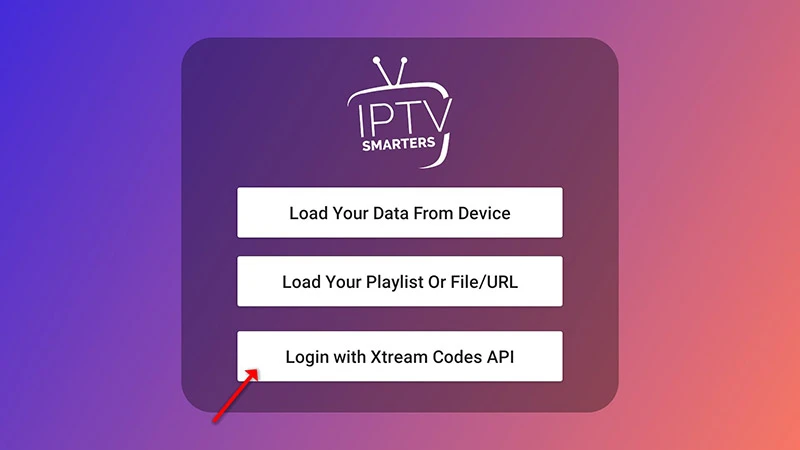
Step 1: Open the app once downloaded and click on “Add user” then click on “Login with Xtream Codes API”.
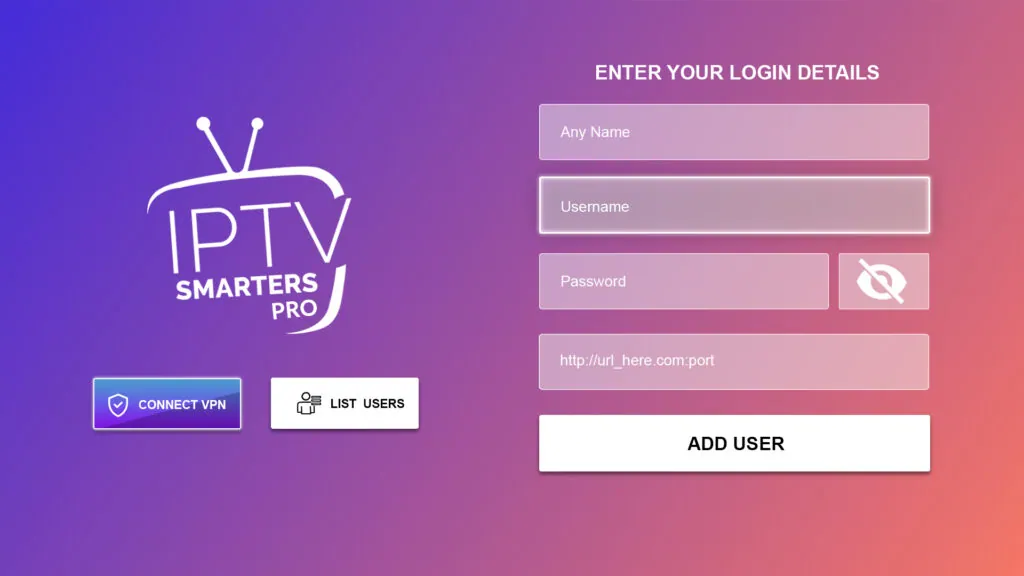
Step 2: Enter “Kemo IPTV” as the Name in the first box. Then in the second, third, and fourth boxes, input the Xtream Codes login credentials (Username, Password and URL (Server address)) provided by us after subscribing. Finally click on “ADD USER”. Get Your Kemo IPTV Subscription.
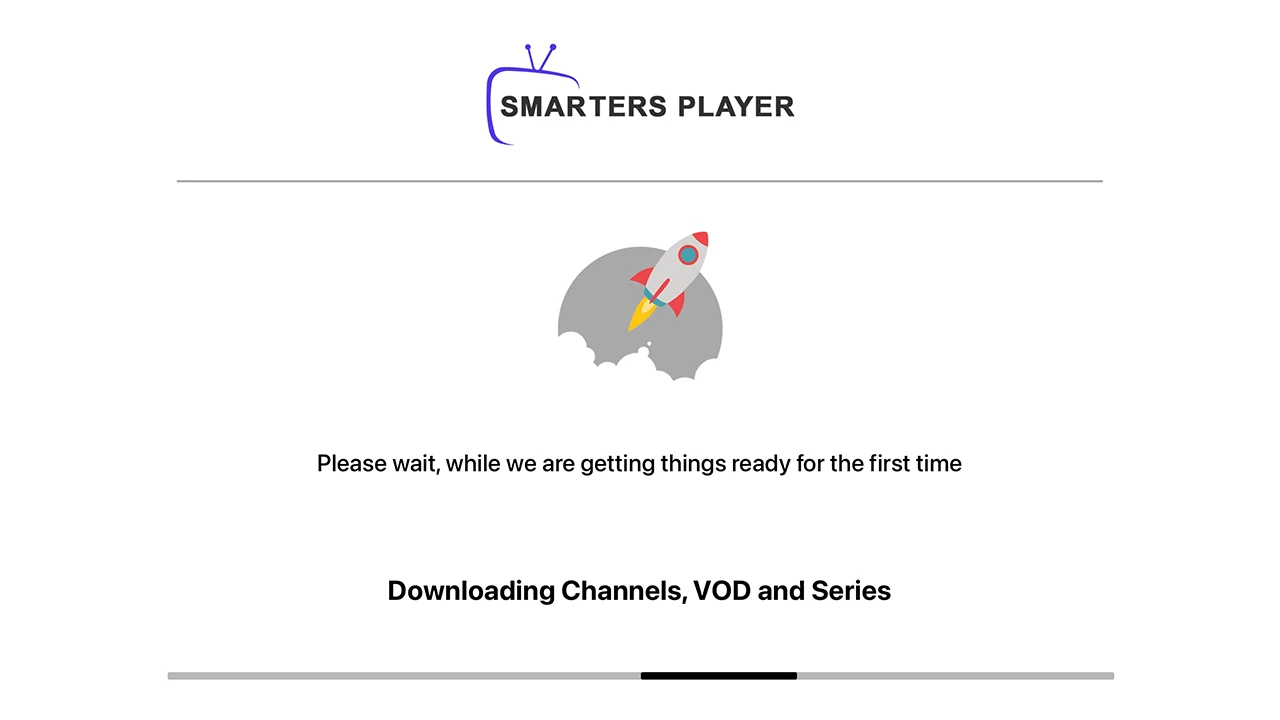
Step 3: Wait some seconds while the app downloads channels, VOD and Series.
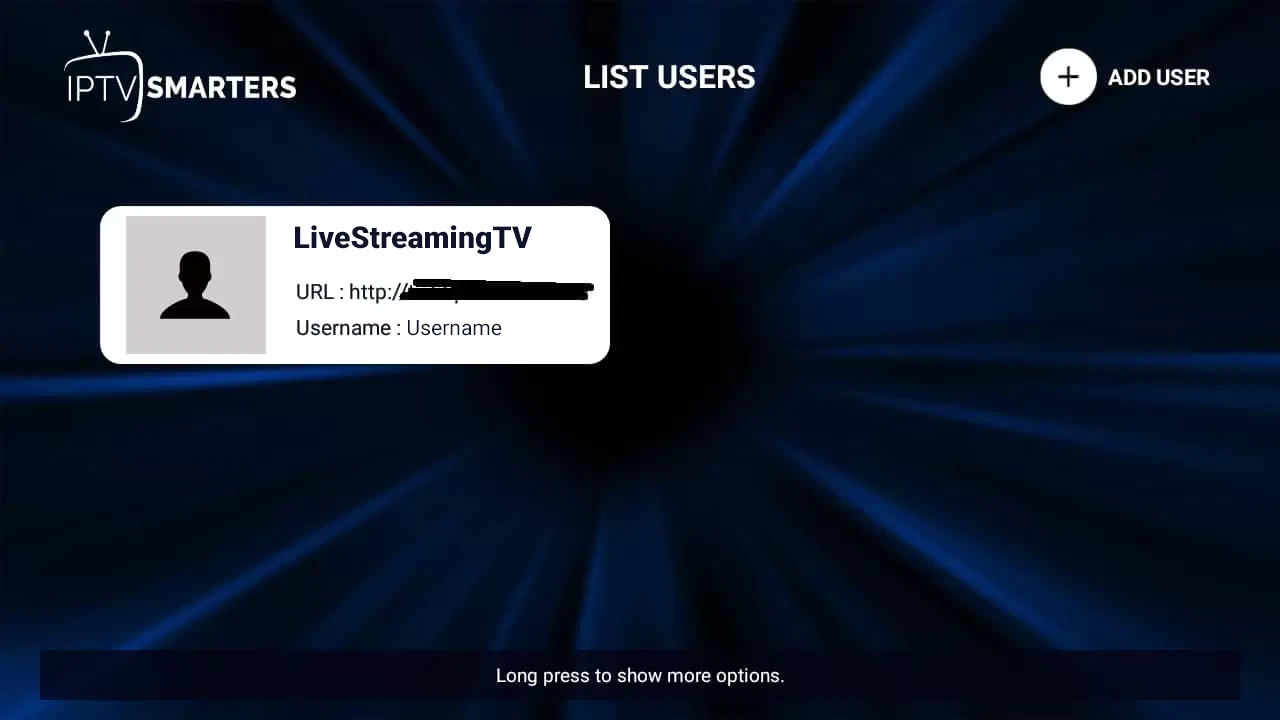
Step 4: Once logged in, access the user list screen and select your newly created profile, as demonstrated in the accompanying images.
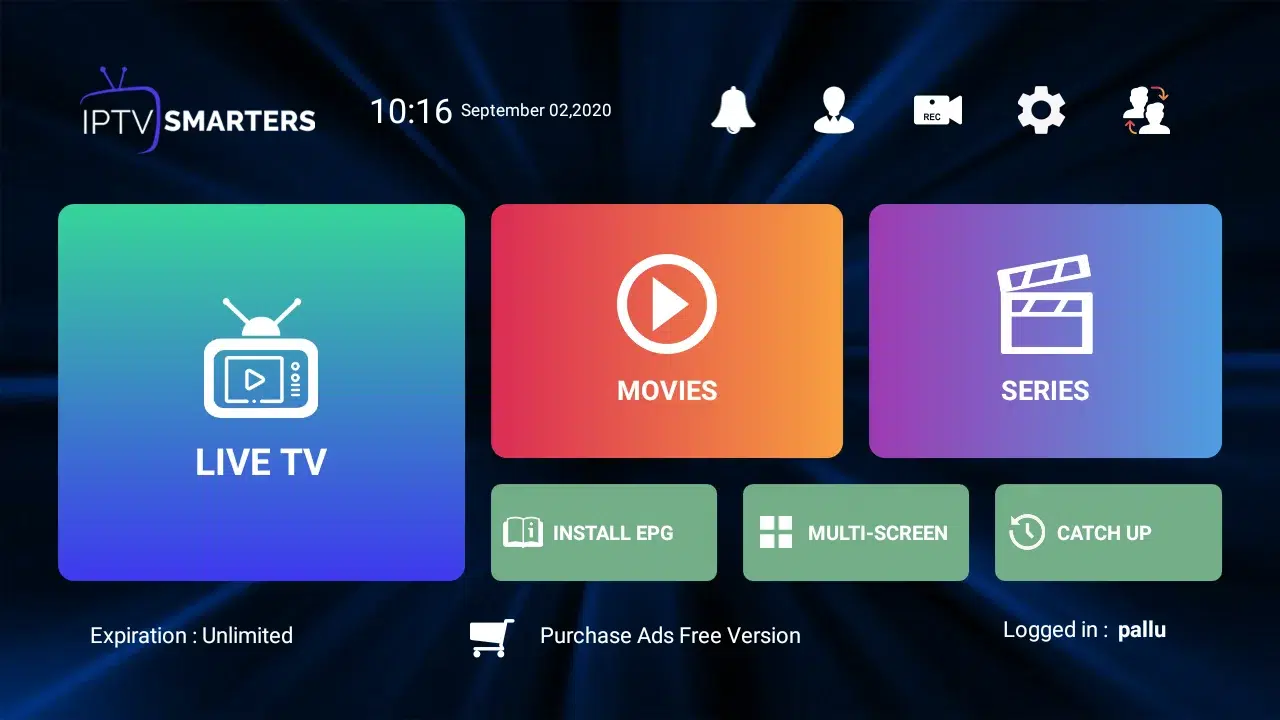
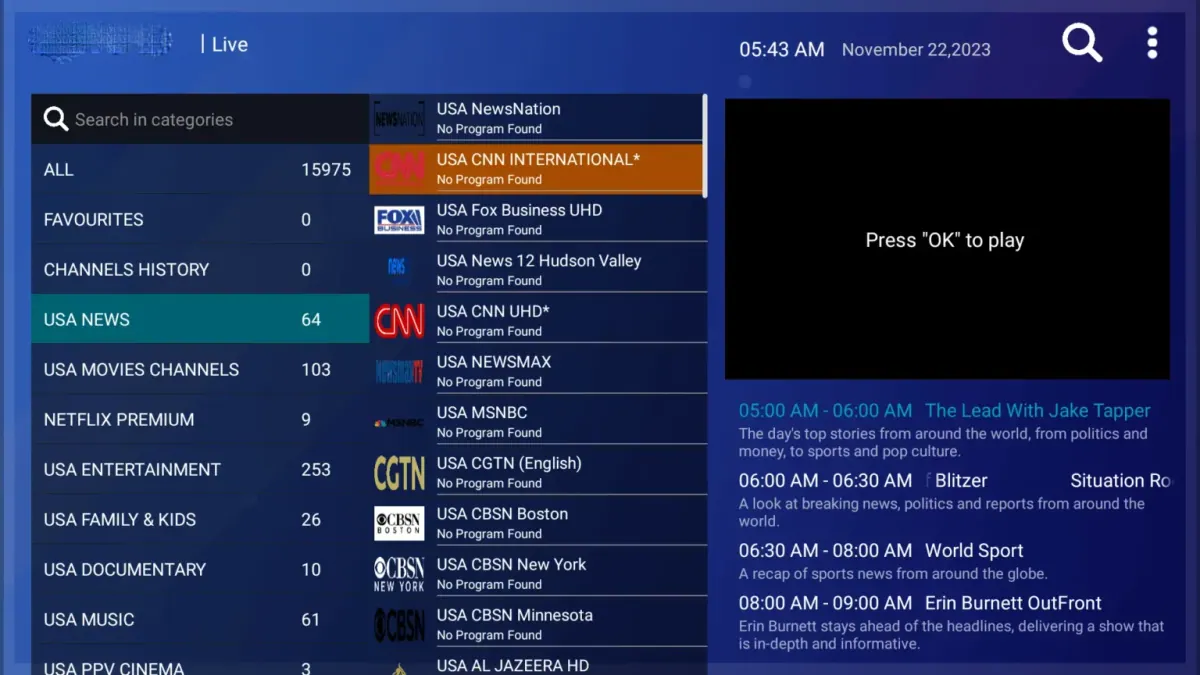

Congratulations! You’ve now completed the setup of the IPTV Smarters Pro app for seamless streaming on Windows.
Windows PC: Tips & Troubleshooting
Windows Defender / Firewall Warning?
When launching the installer, Windows may show a SmartScreen prompt. Click "More info" and then "Run anyway". Allow public/private network permissions when prompted.
Integration with VLC Media Player
For ultra-high bitrate 4K streams, configure IPTV Smarters Pro to use VLC Player as its external default player under Settings > Player Selection.
Alternative Windows Apps (MyIPTV Player / VLC)
You can also use MyIPTV Player from the Microsoft Store or VLC Media Player directly by opening your Kemo IPTV M3U network link.
Windows & Mac: Frequently Asked Questions
Which app should I use on Windows?
IPTV Smarters Pro has a Windows build and takes Xtream Codes directly. VLC will also play the service M3U link if you would rather not install anything new.
Does this work on macOS too?
Yes. The same Smarters Pro desktop build runs on Mac, and VLC is available there as well. your login credentials are identical on both platforms.
Can I watch through a web browser?
There is no official web player. Streams are delivered over Xtream Codes and M3U, which need a desktop player such as Smarters Pro or VLC rather than a browser tab.
Why is VLC smoother than the lightweight players?
VLC decodes in hardware and buffers ahead; minimal players do neither. For a stable the service picture on a PC, stay with Smarters Pro or VLC.