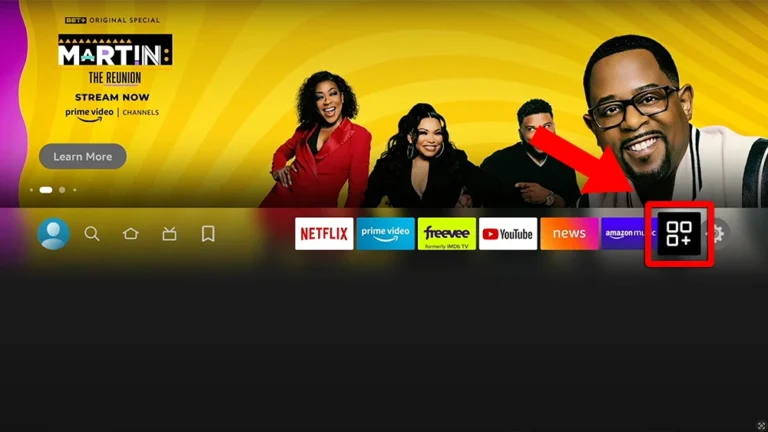
1. Go to the Apps menu page from the FireStick Home page.
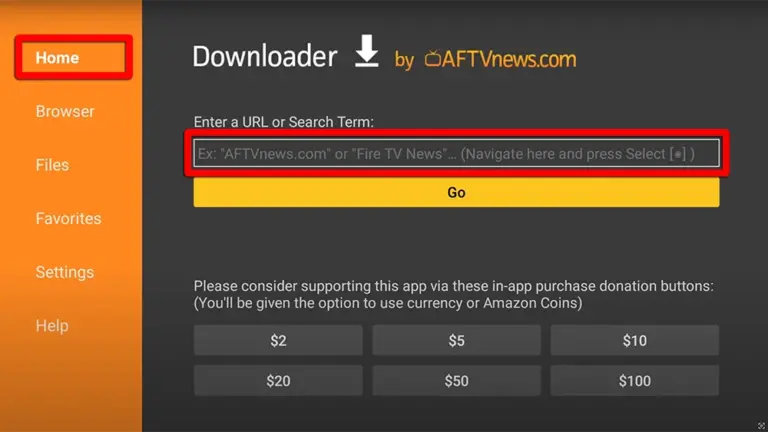
2. Open the Downloader app and select Enter a URL on the Home screen.
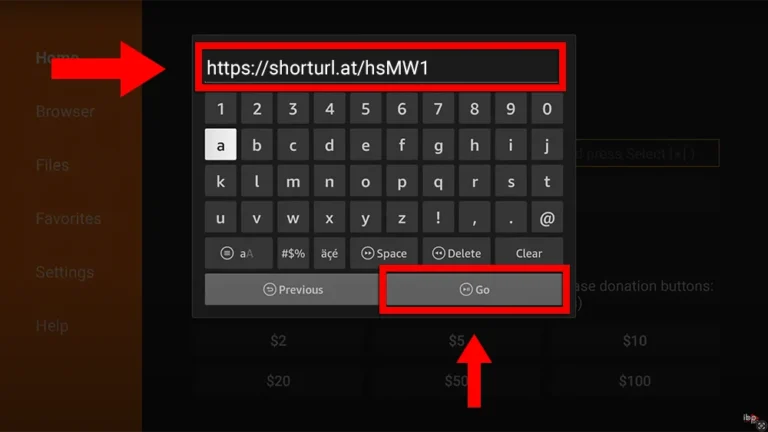
3. Type the following URL exactly as shown here: https://shorturl.at/hsMW1 and Click "GO"
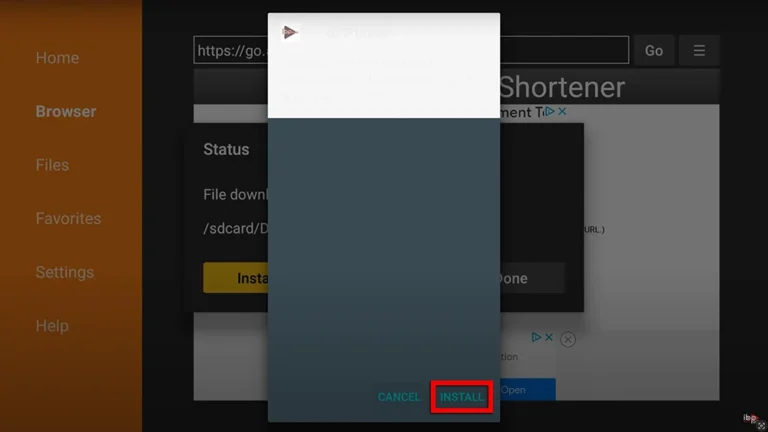
4. Click "Install" when prompted.
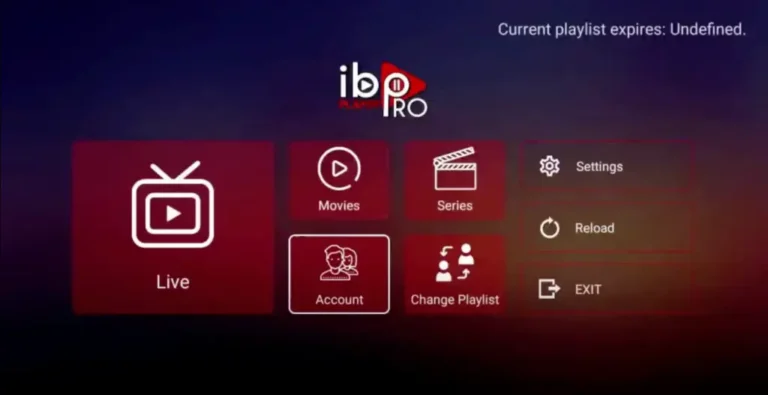
1. Open the App and Click on "Account" to see an activation screen displaying a unique activation code (MAC Address and Device Key).
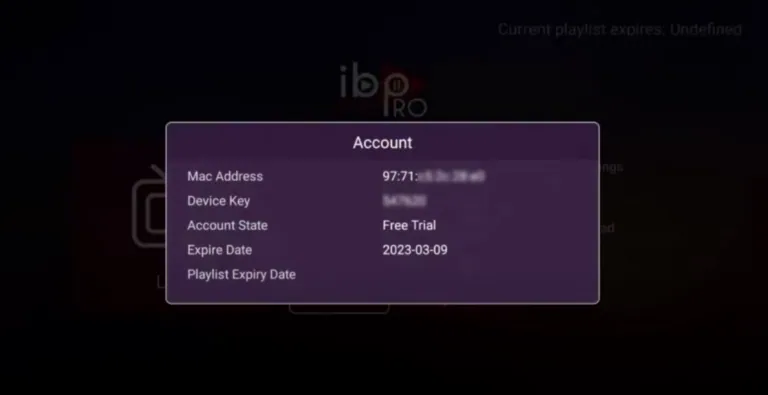
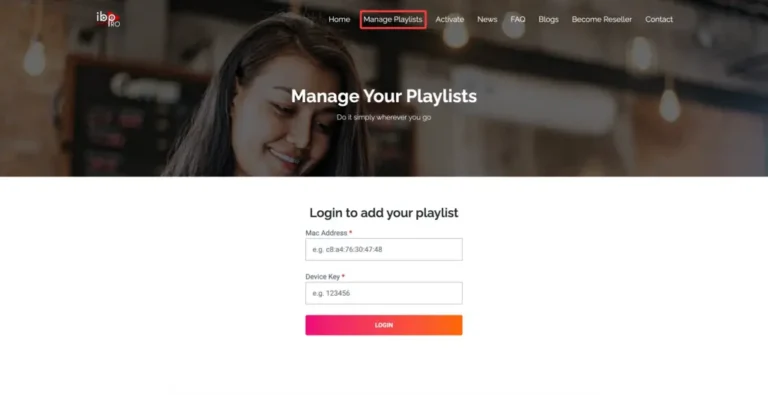
2. Visit ibo Player Pro website https://iboproapp.com and Click "Manage Playlists" in Menu section. Then Enter the MAC Address and Device Key displayed on your device screen and Click "Login".
3. Click "Add XC Playlist" (recommended way).
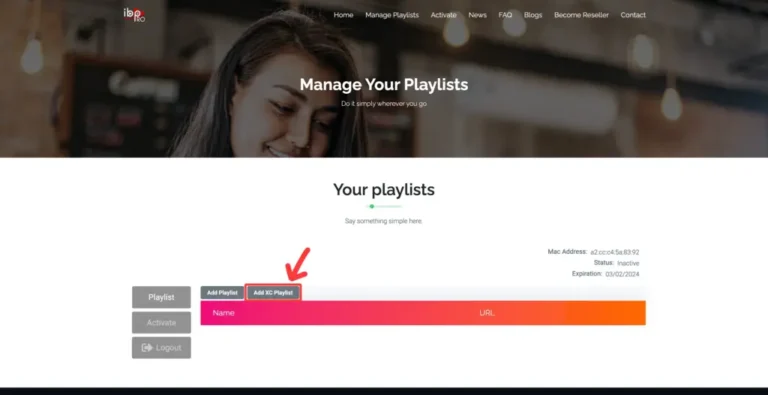
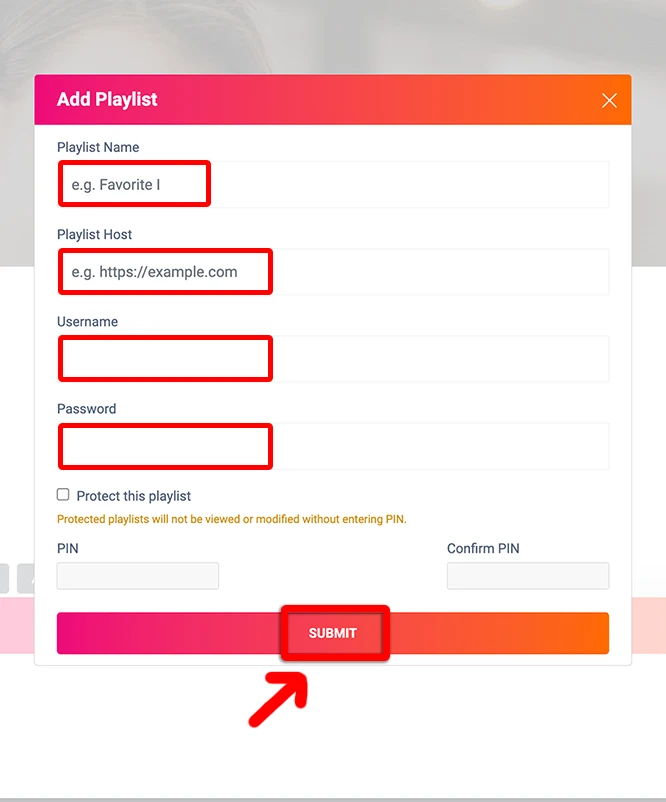
4. Enter "Kemo IPTV" as the Playlist Name in the first box. Then in the second, third, and fourth boxes, input the Xtream Codes login credentials (Server address, Username and Password) provided by us after subscribing. Finally, click "Submit" to proceed. Get Your Kemo IPTV Subscription.
5. After activation, return to your device and restart the ibo Player Pro app for the changes to take effect. Then, select "Continue", followed by "Change Playlists", and connect to your The service playlist. Have a great time!
NOTE: The app has a 7-day trial period; when it expires, go to https://iboproapp.com/manage-playlists, Log in with the MAC Address and Device Key from your app, then pay the one-time fee.
Congratulations! You've now completed the setup of the ibo Player Pro app for seamless streaming.
IBO Player Pro: Firestick Troubleshooting
"Invalid MAC Address or Device Key" on portal?
Double check both fields from your TV screen under Account. MAC addresses and device keys are case-sensitive and must be entered without extra spaces.
Playlist Not Refreshing on TV?
After clicking Submit on the website, go back to your Firestick, press the Reload button on the ibo Player home screen, or restart the app.
Subtitles or Audio Track Selection?
While playing any live channel or VOD movie, press the Down button on your Firestick remote to open the on-screen player controls and select subtitle languages.
IBO Player Pro: Frequently Asked Questions
Why is IBO Player Pro not in the Fire TV app store?
Amazon does not list it, so you sideload it with the Downloader app as shown above. Enable apps from unknown sources first, and the install takes under a minute before you add the service.
How long does activation take on a Firestick?
Around five minutes. The slow part is uploading your playlist against the device key IBO Player Pro shows on first launch; the service details themselves are entered once and remembered.
My Firestick keeps buffering — what should I check?
Buffering on Fire TV is usually the device, not the stream. Clear the IBO Player Pro cache, keep at least 500MB of storage free, and use 5GHz Wi-Fi. First-generation Sticks are also happier capped at 1080p.
Do I need a VPN on Firestick?
Not to make it work. Some people add one because their ISP throttles sustained video traffic, but if your stream is stable without it there is nothing to fix.