How to Fix "IPTV Smarters Failed to Authorize" (Under 60 Seconds)
To fix an IPTV Smarters "Failed to Authorize" or "Authorization Failed for Above Host" error, follow these 4 immediate checks:
- Remove Trailing Spaces & Check URL Syntax: Ensure your Server URL contains no accidental spaces at the end, includes
http://(nothttps://unless configured with SSL), and specifies the port (e.g.,:80or:8080). - Verify Xtream Codes Case-Sensitivity: Usernames and passwords are strictly case-sensitive. Verify on WhatsApp or email that capital letters match your activation notice.
- Switch Router DNS to 1.1.1.1: Internet Service Providers frequently block IPTV server domains. Change your device DNS to Cloudflare (
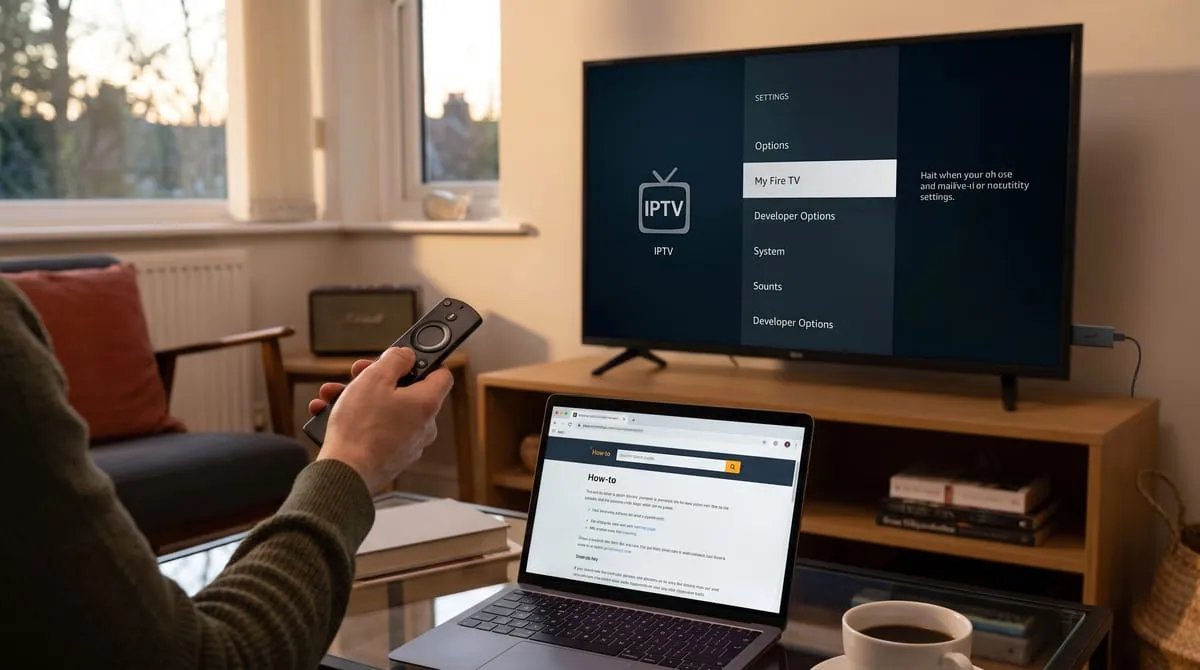
1.1.1.1and1.0.0.1) or Google (8.8.8.8) to bypass ISP filtering. - Clear App Cache & Re-login: On Firestick or Android TV, navigate to Settings > Applications > Manage Installed Applications > IPTV Smarters Pro > Clear Cache, then relaunch.
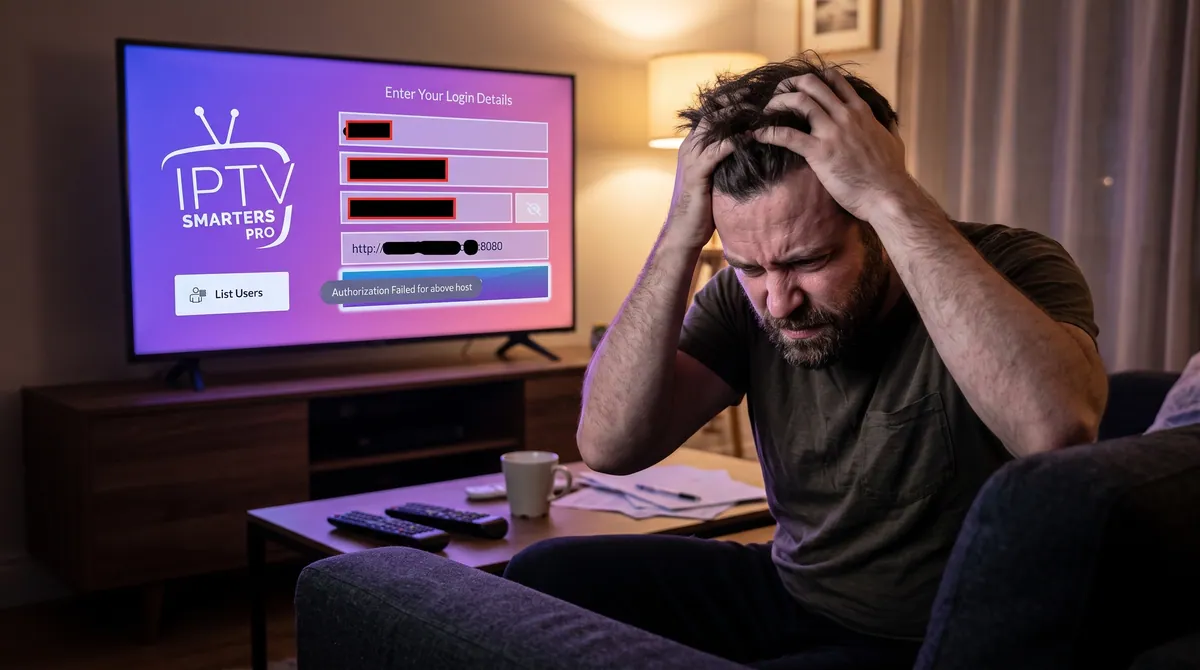
You turn on your television, launch IPTV Smarters Pro (or Smarters Player Lite), enter your subscription credentials, and click "Add User"—only to hit an immediate wall:
“Failed to Authorize”
or “Authorization Failed for Above Host. Please verify your username, password, or server URL.”
Few error prompts are more disruptive. This issue completely halts communication between your streaming client and the remote host server, preventing channel playlists, Electronic Program Guides (EPG), and Video on Demand (VOD) libraries from populating.
Whether you are configuring the application on an Amazon Firestick, Samsung Smart TV (Tizen OS), LG webOS, Android TV Box, Apple TV (tvOS), or Windows/macOS, this in-depth guide covers every root cause and provides tested, step-by-step engineering and software fixes to restore your service.
Quick Navigation & Diagnostic Summary
If you are short on time, use the quick diagnostic matrix below to match your specific symptoms with the appropriate resolution:
| Error Symptom | Most Probable Root Cause | Recommended Action |
|---|---|---|
| Instant "Failed to Authorize" | Syntax typo in Server URL, Username, or Password | Verify character cases; remove trailing spaces. |
| Takes 30+ seconds then Fails | ISP DNS blocking or server port timeout | Change DNS to Cloudflare/Google or toggle a VPN. |
| Fails only on Samsung / LG TV | Expired SSL certificate or outdated OS client | Switch protocol from https:// to http://. |
| "Invalid Details" / "Account Disabled" | Expired plan or concurrent stream limit exceeded | Verify active status via your provider dashboard. |
| Looping authorization after cache clear | Corrupted SQLite app database | Clear local app data or perform a clean reinstall. |
Understanding the Technical Architecture: How IPTV Smarters Authorizes
To effectively troubleshoot the issue, it helps to understand how the Xtream Codes API and M3U Playlist handshakes work behind the scenes.
│
├── 1. Sends HTTP/HTTPS GET Request (Credentials + Device ID) ──────►
│ [ ISP Gateway / DNS Resolver ]
◄── 2. Returns JSON Payload (Token, Expire Date, Stream URLs) ────────┤
▼ ▼
[ IPTV Host Middleware & Load Balancer ]
When you enter your Username, Password, and Server URL (Host:Port) into IPTV Smarters:
- The Handshake Request: The application initiates a network call (typically an HTTP/HTTPS
GETquery) formatted as:http://domain.com:port/player_api.php?username=USER&password=PASS - Server Response Validation: The host server parses your credentials against its active customer database. If valid, it returns an authenticated JSON payload containing:
{
"auth": 1,
"status": "Active",
"exp_date": "1798761600",
"server_info": { "port": "8080", "https_port": "443" }
} - The Authorization Failure Point: If the server returns
auth: 0, sends an empty response, rejects the HTTP status code (e.g.,401 Unauthorized,403 Forbidden,404 Not Found), or if your ISP drops the packet before it reaches the destination, IPTV Smarters throws the generic "Failed to Authorize" message.
10 Root Causes Behind the "Failed to Authorize" Error
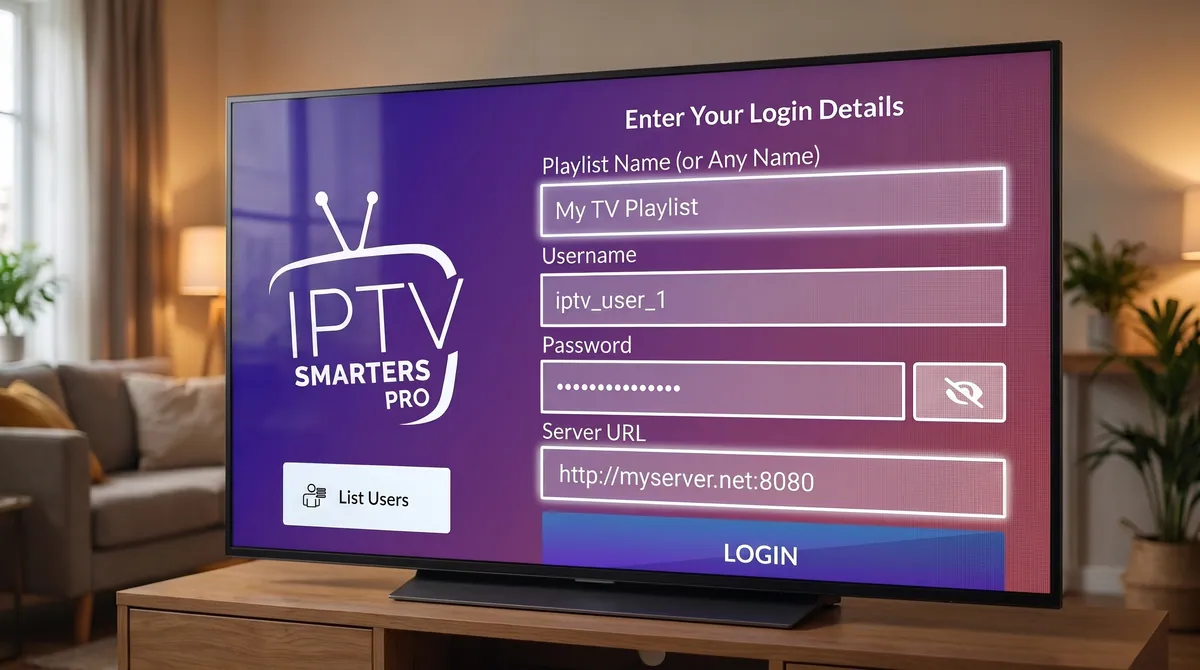
Entering long URLs and complex passwords using an on-screen TV remote frequently introduces unseen errors. Virtual keyboards on Fire TV and Android often insert an automatic space at the end of text inputs. A single space (admin instead of admin) completely breaks MD5/SHA256 password hash calculations on the provider's server.
http:// vs https://)Some IPTV host servers operate strictly on plaintext http:// protocols, while others mandate encrypted https:// connections. If you enter https:// for a server that does not have an active SSL/TLS Certificate, the handshake fails immediately during the SSL negotiation phase.
IPTV lines are bound to specific concurrent stream limitations (e.g., 1-Device, 2-Device, or Multi-Room plans). If another device in your home is already streaming on the line, or if your subscription period has ended, the middleware automatically rejects incoming authorization requests.
Major Internet Service Providers (such as Comcast Xfinity, AT&T, Spectrum, BT, Virgin Media, and Vodafone) frequently deploy automated network security filters that block known IPTV reverse-proxy domains and streaming hostnames. When this occurs, your router cannot resolve the host IP address.
IPTV Smarters stores playlist caches, category structures, and authorization tokens locally using an internal SQLite database. If the app was closed improperly during a background EPG sync or experienced an unexpected power loss, these files can become corrupt, causing the app to reject valid login credentials.
Step-by-Step Master Troubleshooting Guide
Follow these actionable, device-specific fixes in sequence to isolate and resolve the issue.
1 Step 1: Execute a Strict Credential & URL Audit
Before modifying network or app settings, rule out syntax errors by validating every character:
- Check the Protocol Prefix: Ensure the URL starts with
http://orhttps://. Do not typehtp://orhttp//:. - Verify the Port Number: Ensure the trailing colon and port number (e.g.,
:8080,:2086,:2095,:80) are included if specified in your provisioning email. - Eliminate Hidden Whitespace: Use the backspace button on your on-screen keyboard after typing your username and password to guarantee no invisible spaces exist at the beginning or end.
- Mind Capitalization: Remember that Linux-based middleware servers treat
Password123andpassword123as entirely distinct strings.
2 Step 2: Verify Your Subscription Status & Concurrency Limits
Confirm that your IPTV subscription is active and has not expired or been locked due to excessive concurrent connections:
- Log into your service account dashboard to verify your plan status is Active.
- If your subscription has expired, you can renew your IPTV subscription plan with instant automated credential delivery.
- Ensure all other household devices running IPTV (tablets, phones, secondary TVs) are fully closed so you do not exceed your allotted active connections.
3 Step 3: Switch From HTTPS to HTTP (or Vice Versa)
If your login details are correct but authorization fails instantly:
- If your server URL is
https://stream.server.me:8080→ Change it to:http://stream.server.me:8080 - If your server URL is
http://stream.server.me:8080→ Change it to:https://stream.server.me:8080
4 Step 4: Bypass ISP Firewalls via a High-Speed VPN
If your Internet Service Provider uses Deep Packet Inspection or DNS filtering to restrict IPTV traffic, your device will be unable to communicate with the host server.
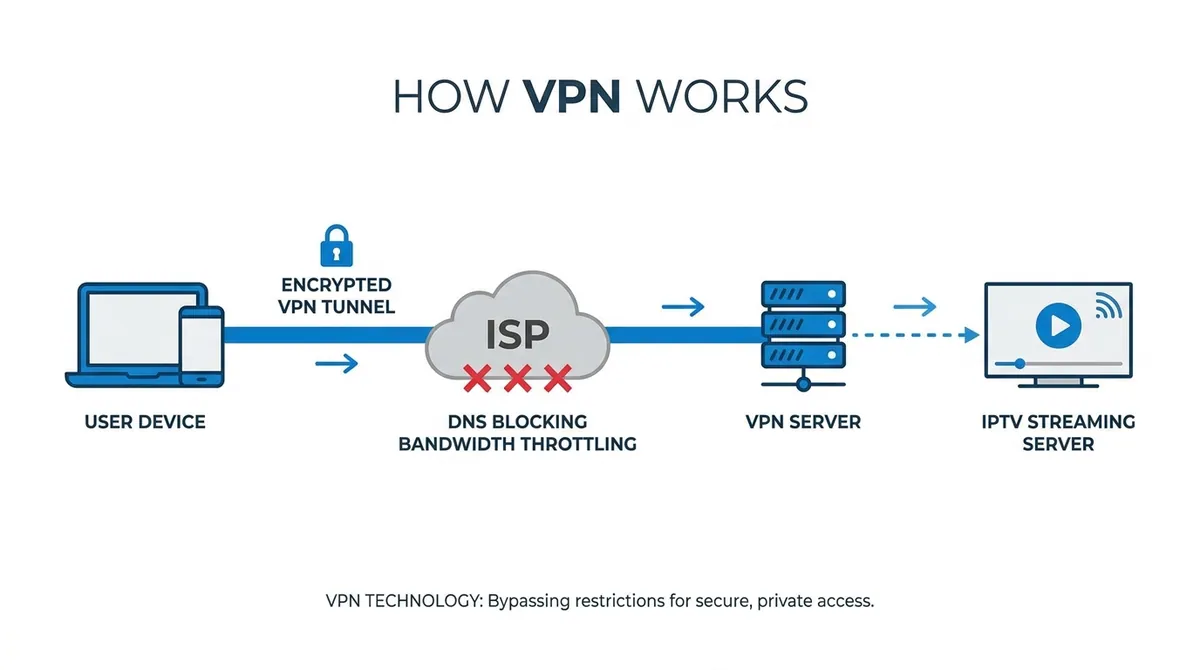
How to test and resolve:
- Install an established VPN client (such as ExpressVPN, NordVPN, or Surfshark) directly onto your streaming device via the Amazon Appstore or Google Play Store.
- Connect to a server located in a streaming-friendly jurisdiction (e.g., Switzerland, Iceland, Netherlands, or an alternative local domestic server).
- Re-launch IPTV Smarters Pro and attempt authentication.
- If your smart TV does not natively support VPN apps (e.g., LG webOS / Samsung Tizen), configure the VPN connection at your home router level or set up a virtual Wi-Fi hotspot through a VPN-enabled PC.
5 Step 5: Change DNS Configuration on Your Streaming Device
If you prefer not to use a VPN, switching your device's DNS resolver away from your default ISP name server can often resolve routing blocks immediately.
Recommended Public DNS Resolvers:
- Cloudflare DNS: Primary:
1.1.1.1| Secondary:1.0.0.1(Learn more via Cloudflare 1.1.1.1 Docs) - Google Public DNS: Primary:
8.8.8.8| Secondary:8.8.4.4(Learn more via Google Public DNS Guide)
Configuration Steps for Amazon Fire TV / Android:
- Navigate to Settings > Network.
- Select your active Wi-Fi connection and choose Forget Network.
- Re-select your Wi-Fi, enter your password, but click Advanced instead of Connect.
- Set your IP settings to Static.
- Enter your local IP, Gateway (Router IP), and assign DNS 1 to
1.1.1.1and DNS 2 to8.8.8.8. - Save and restart your streaming device.
6 Step 6: Clear Cache and App Data (Purge Corrupted Database)
Cached tokens and stale EPG database files can prevent new authentication handshakes from registering properly.
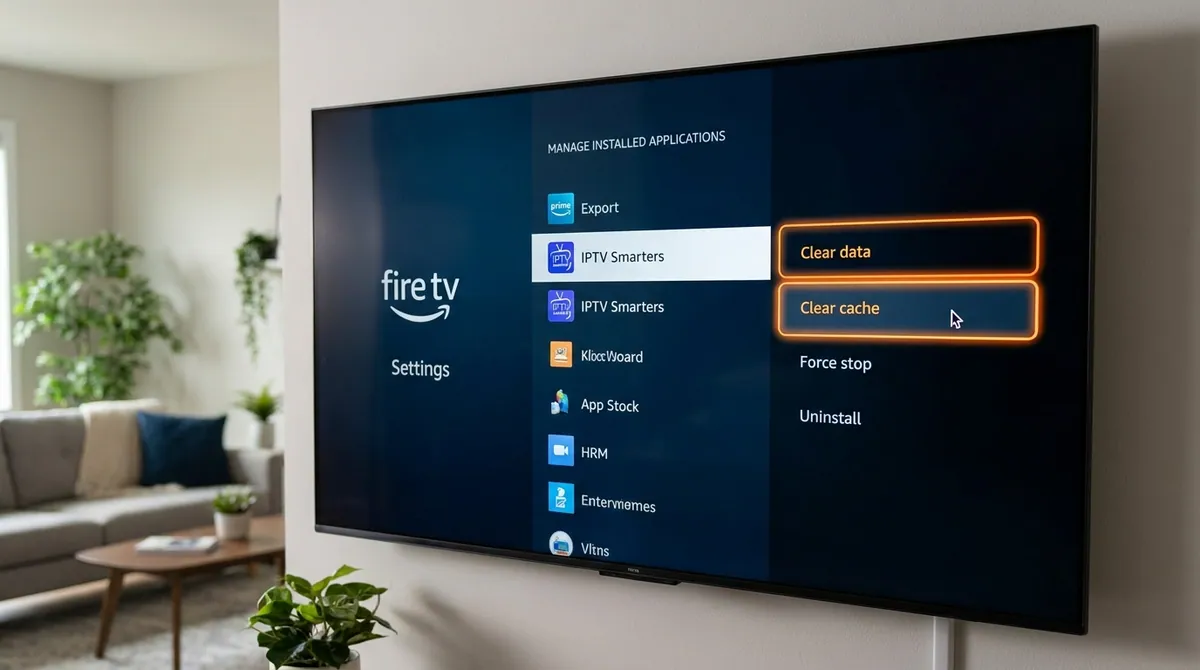
On Amazon Firestick & Fire TV Devices:
- Press the Home button on your Fire TV remote.
- Go to Settings (Gear Icon) > Applications > Manage Installed Applications.
- Locate and select IPTV Smarters Pro.
- Click Force Stop.
- Click Clear Cache, then click Clear Data.
- Relaunch the application and re-enter your login information.
On Android TV / Google TV / Nvidia Shield:
- Open Settings > Apps > See all apps.
- Scroll to IPTV Smarters Pro.
- Select Clear Data and confirm with OK.
7 Step 7: Device-Specific Fixes for Samsung (Tizen) & LG (webOS) TVs
Smart TVs powered by Samsung Tizen OS and LG webOS run web-wrapper versions of IPTV Smarters that differ significantly from native Android APK builds.
│
[ Recommended Fix ]
▼
Reinstall App + Switch to HTTP Protocol + Set Manual DNS 8.8.8.8
- Delete and Reinstall the Application:
- On Samsung: Press Home > Apps > Select IPTV Smarters > Choose Delete. Power cycle your TV by unplugging it from the wall for 60 seconds (cold reboot), then reinstall the app from the Samsung Smart TV App Store.
- On LG: Go to the LG Content Store, locate the app, remove it, perform a quick restart, and reinstall.
- Update TV Firmware: Verify your television's OS is running the latest system firmware update to ensure root security certificates are up to date.
- Verify Network Latency: Run a quick connection test using Speedtest by Ookla to verify your TV is receiving adequate throughput (minimum 25 Mbps for 4K streams with low jitter).
If your TV continues to experience app compatibility limitations, read our complete guide on how to install and optimize IPTV Smarters on Smart TVs.
8 Step 8: Test the Stream URL in an External Player (VLC Verification)
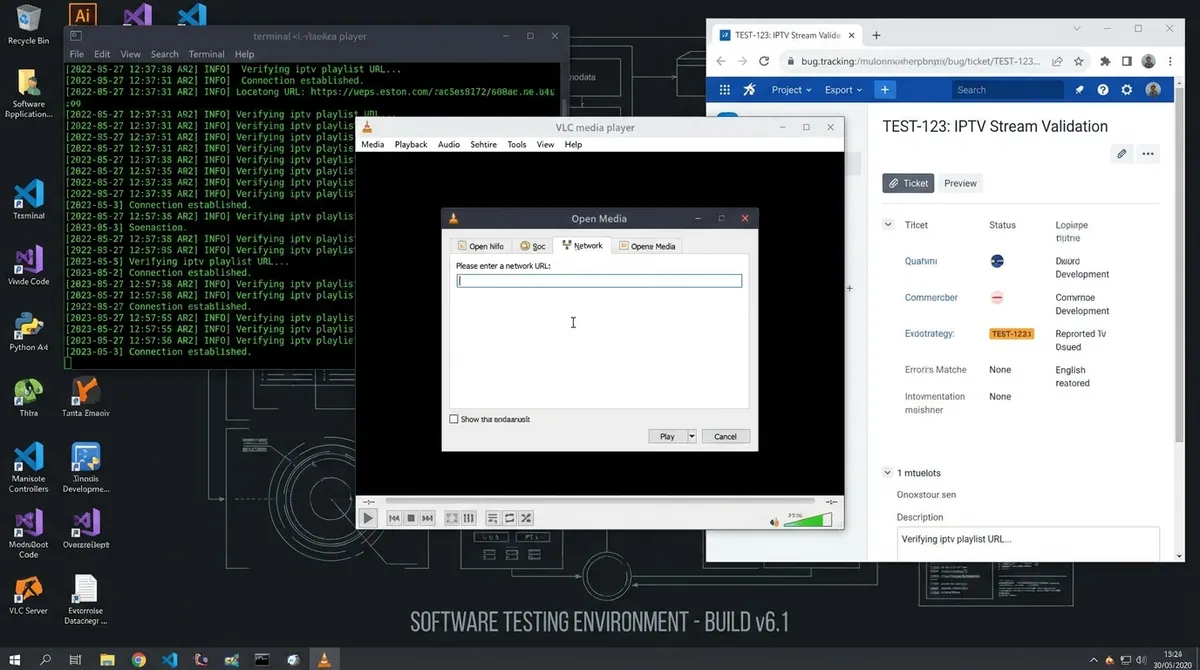
To decisively isolate whether the authorization failure is caused by the IPTV Smarters application or by the upstream IPTV provider server, perform an external stream verification test using a computer or smartphone:
- Download and launch the official VLC Media Player on your Windows, Mac, or mobile device.
- In the top navigation menu, select Media (or File on Mac) > Open Network Stream (Shortcut:
Ctrl + N). - Construct your raw M3U stream URL using your login details:
http://domain.com:port/get.php?username=YOUR_USER&password=YOUR_PASSWORD&type=m3u_plus&output=ts
- Paste the URL into the network URL box and click Play.
Evaluating the Result:
- VLC plays the streams normally: Your IPTV subscription and server are fully operational. The issue is strictly isolated to your IPTV Smarters app installation, local device cache, or TV firmware.
- VLC returns a connection error or 401/403/404 code: Your IPTV provider’s server is down, your credentials are invalid, or your IP is blacklisted upstream.
Alternative IPTV Players to Consider
If IPTV Smarters Pro remains unresponsive despite completing all troubleshooting steps, you can load your subscription credentials into several industry-standard alternative players:
TiviMate IPTV Player
Premier player for Android TV & Firestick with advanced multi-screen and automated EPG syncing.
IBO Player
Most reliable native player for Samsung Tizen & LG webOS that completely avoids TV SSL handshake bugs.
XCIPTV Player
Xtream Codes-native media player featuring dual built-in ExoPlayer and VLC hardware acceleration cores.
Televizo Player
Lightweight, ultra-fast low-resource media player ideal for older Android TV boxes and mobile devices.
Explore our comprehensive analysis of the top 5 best alternative IPTV players for Smart TVs and Firestick to find the ideal match for your setup.
How to Prevent Future Authorization Errors
To ensure long-term stability and eliminate recurring login failures, implement these operational best practices:
- Store Credentials Securely: Maintain a digital backup of your exact Xtream Codes URL, username, and password in a secure password manager rather than relying on manual TV entry.
- Avoid Frequent IP Hopping Without a VPN: Rapidly alternating between mobile data, home broadband, and public Wi-Fi networks can trigger automated anti-fraud account locks on security-sensitive IPTV servers.
- Keep Your Streaming App Updated: Periodically check for updates on the Apple App Store or Google Play to ensure your app stays compatible with current server protocols.
- Choose a Reliable, High-Availability Provider: Low-cost, overloaded servers frequently drop database connections during peak sports and live events. Using a dedicated high-bandwidth service prevents random authorization dropouts.
Frequently Asked Questions (FAQ)
What does "Authorization Failed for Above Host" mean in IPTV Smarters?
This specific error indicates that IPTV Smarters successfully reached the IP address of the server hostname, but the host's middleware API actively rejected the login request. This is typically caused by an incorrect password, expired subscription, or server-side port blocking.
Why does IPTV Smarters fail to authorize only during live sports events?
During major sporting broadcasts, low-tier IPTV servers experience massive traffic spikes that can overload their authentication API databases. If the server cannot process the authorization handshake within the application's timeout window (typically 10–15 seconds), IPTV Smarters displays an authorization failure.
Can changing my router DNS fix IPTV Smarters on all devices?
Yes. Updating your primary and secondary DNS servers to Cloudflare (1.1.1.1) or Google (8.8.8.8) directly at your home router level automatically routes all connected devices (Firesticks, Smart TVs, mobile phones) around ISP-level DNS filtering.
Does IPTV Smarters Pro cost money to authorize?
The standard IPTV Smarters Pro application is free to download and use with your own third-party subscription credentials. The "Failed to Authorize" prompt is not a billing request from the app developers; it is an authentication failure between the app and your IPTV service provider.
How can I test if my IPTV service is working right now?
The fastest way to test your connection is to request a fresh test line. You can request a free 24-hour IPTV trial on Kemo TV to instantly confirm whether our high-speed streams connect smoothly on your device.
Upgrade to Fast, Anti-Freeze 4K Streaming
Tired of unpredictable downtime, server disconnects, and constant authorization headaches with substandard IPTV providers? Experience uninterrupted streaming with Kemo TV Max Premium Subscription Plans.